Construction Quote Template PDF: Download Free + Send Professional Quotes
Quick Answer
A construction quote PDF is the professional standard for sending quotes to clients — it prevents editing, looks polished, and prints cleanly. Create one by completing your quote in Word or Excel, then export as PDF. Alternatively, RenoCalc generates a professionally formatted cover letter as PDF automatically with every quote, free of charge.
PDF is the professional standard for sending quotes to clients. Unlike a Word document or spreadsheet, a PDF cannot be edited once it leaves your hands — the figures stay exactly as you wrote them, it prints cleanly on any device, and it looks like a document that came from a real business rather than a rough jot on a spreadsheet. After 32 years in construction, I have seen what happens when builders send editable quotes: clients print and amend them, figures get changed after the fact, and disputes follow. Send a PDF. Always.
This guide covers what a professional construction quote PDF must contain, how to create one quickly, and how RenoCalc generates a client-ready cover letter automatically — at no cost — every time you run a job through the system.
What a PDF Building Quote Must Include
A quote that is missing key information creates uncertainty — and uncertainty gives clients a reason to go elsewhere or to renegotiate the price once work starts. Every construction quote PDF you send should contain all of the following elements.
- Company letterhead — your business name, address, phone number, email, website, and company or sole trader registration details. VAT number if you are VAT registered.
- Unique quote reference number — makes it easy to track correspondence, revisions, and invoices against a specific quote. Format it however you like (QT-2026-041, for example), but be consistent.
- Client details — full name, address, and contact details of the person commissioning the work.
- Property/site address — especially important when the client is a landlord or developer and the site differs from their own address.
- Date of issue and validity period — state clearly how long the quote is valid for. Thirty days is standard. Without this, a client can come back twelve months later expecting you to honour the price.
- Itemised scope of works — break the job down trade by trade or element by element. A single lump-sum figure with no breakdown tells the client nothing and gives you no protection if there is a later dispute about what was included.
- Exclusions and assumptions — be explicit about what is not covered. Common exclusions: groundworks beyond a stated depth, unforeseen structural issues, specialist subcontractor procurement, client-supplied materials, planning or Building Control fees.
- Total price — state clearly whether VAT is included or excluded. "£14,500 + VAT" or "£17,400 including VAT at 20%" — be specific. Ambiguity here is a source of disputes.
- Payment terms and stage payment schedule — when is the deposit due, what percentage is it, and when are subsequent payments triggered. Tie payments to measurable milestones, not just calendar dates.
- Signature block — space for both you and the client to sign and date the document. A signed quote functions as the basis of a contract. Without a signature, you have no written confirmation that the client agreed to the scope or the price.
If you are sending a quote for work over £10,000, consider including your insurance details — public liability and employers' liability where applicable — on the cover letter. Experienced clients, project managers, and main contractors will expect to see these, and having them on the document saves a follow-up email.
For a broader look at the different formats builders use — including Word and Excel versions — see our guide to building quote templates UK.
How to Create a Construction Quote PDF
There are two practical routes: build it yourself in a word processor and export to PDF, or use a quoting tool that generates the document for you.
Option 1: Word or Google Docs, Exported to PDF
This is the most common approach for builders who are not yet using specialist software. Build a template in Microsoft Word or Google Docs — letterhead at the top, table for the scope of works in the middle, payment terms and signature at the bottom — and save it as your master template. For each new job, open the template, fill in the client details and scope, and export to PDF before sending.
- Open your Word or Google Docs template. Never work on the master — always save a new copy with the client name and job reference in the filename (e.g., Quote_QT-2026-041_Smith_Extension.docx).
- Fill in the client details, site address, quote reference, date, and validity period at the top.
- Complete the itemised scope table — trade by trade, element by element, with a cost against each line.
- Add your exclusions list below the scope. This is the section most builders skip — do not skip it.
- State the total price clearly, including your VAT position. Add your payment terms and stage payment schedule.
- In Word: go to File > Save As > PDF. In Google Docs: File > Download > PDF Document (.pdf). Do not send the .docx file — always send the exported PDF.
The limitation with this method is the time it takes to fill in a detailed scope accurately. Most builders either under-specify (which causes disputes) or spend hours itemising every line (which makes quoting unsustainable at volume). A Word-based PDF quote is fine for occasional use — it becomes a bottleneck when you are running multiple live quotes at once.
If you want a Word-format starting point, see our guide on building quote template Word — it covers a downloadable template structured for UK construction work.
Option 2: Use RenoCalc
RenoCalc generates a professional cover letter — formatted as a client-ready PDF document — automatically, every time you upload a floor plan and run a quote. You do not build it line by line. You upload the drawings, the AI reads the plan, prices the job across all trades, and produces the full document pack including the cover letter.
The cover letter is always free on RenoCalc, regardless of which plan you are on. Every builder who signs up — even on the free tier — gets the client-facing cover letter as part of their output. No formatting required. No blank template to fill in. It is ready to send.
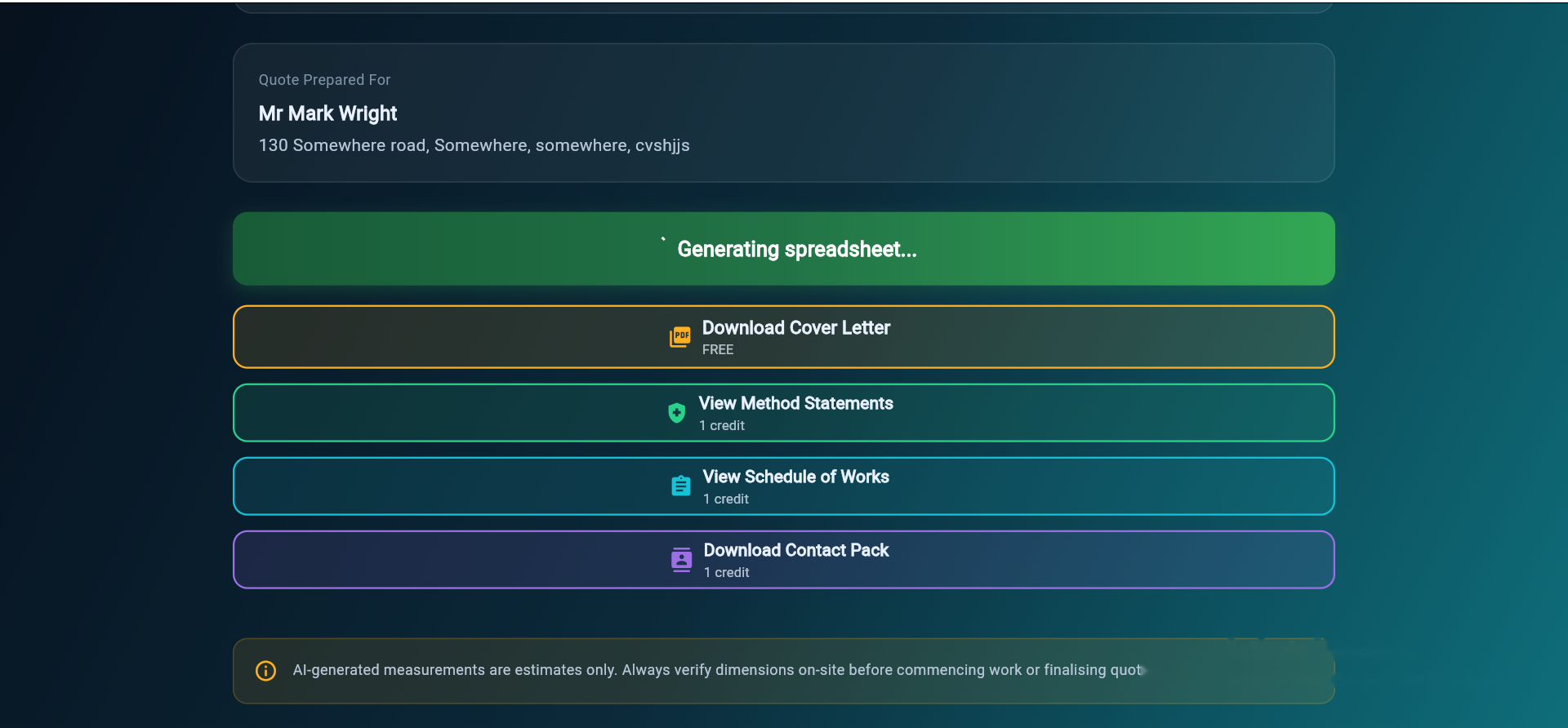
RenoCalc's Free Cover Letter — PDF-Ready by Default
The cover letter is the document your client actually reads. The RenoCalc Spreadsheet contains the full itemised breakdown — trades, materials, labour, totals — but the cover letter is what you hand to the client at the first meeting or send by email after a site visit. It summarises the scope, gives the total price, states the terms, and looks like it came from a professional builder.
RenoCalc generates this from the data in your floor plan upload. The system reads the plan, calculates the quantities for each trade, applies UK regional labour rates, and produces a coherent, structured output. The cover letter uses that output to produce a document that reads like it was written by an experienced estimator — because the underlying data was calculated by one.
The full RenoCalc output pack — depending on the plan you are on — includes:
- Cover letter — always free. Client-facing, professional layout, summarises scope and total.
- RenoCalc Spreadsheet — the full itemised cost breakdown across every trade and element.
- Schedule of works — the programme of works showing the sequence and duration of each trade package.
- Method statements — written descriptions of how key elements of the work will be executed.
- Contract pack — the formal agreement documents, ready for signature.
For most residential builders, the cover letter plus the RenoCalc Spreadsheet is all you need to send to a client to win the job. The additional documents become relevant when you are working for a project manager, main contractor, or on a tender basis where full documentation is expected.
For context on what a well-structured quote cover letter looks like and how it differs from a formal quote document, see our guide to construction quote letter examples.
Get a Professional Quote Pack in Under 3 Minutes
Upload your floor plan and RenoCalc generates your cover letter, RenoCalc Spreadsheet, and full document pack automatically. The cover letter is always free — no card required to start.
Try RenoCalc FreeSee RenoCalc in Action
This short video shows the full RenoCalc workflow — from floor plan upload through to the finished quote pack, including the cover letter that is ready to send to your client.
Frequently Asked Questions
How do I make a PDF quote for construction work?
The most straightforward way is to build your quote in a word processor (Microsoft Word or Google Docs) and export it to PDF using File > Save As PDF or File > Download as PDF. This gives you a non-editable file you can email directly to a client. Alternatively, use a quoting tool like RenoCalc, which generates your cover letter as a PDF-ready document automatically — no manual formatting needed.
Should I send a PDF quote or an editable document?
Always send a PDF. An editable file (Word doc or Excel spreadsheet) can be modified by the client after you send it — they could change figures, remove clauses, or alter the scope and then claim the amended version is what you agreed. A PDF is locked on send. It prints cleanly, looks professional, and protects you legally if there is ever a dispute about what your quote said.
Can I brand a PDF construction quote with my company logo?
Yes, and you should. A branded cover letter with your company name, logo, address and contact details looks professional and reduces the chance of a client shopping around after receiving your quote. If you are using Word or Google Docs, add your logo to the header. RenoCalc's cover letter is generated with a professional layout and your business details built in — it is designed to be sent directly to the client.
What should a building quote PDF include?
A complete building quote PDF should include: company letterhead (name, address, registration number, contact details), a unique quote reference number, the client's name and address, the property address, the date of the quote and the validity period, an itemised scope of works with costs for each trade or element, a list of exclusions and assumptions, the total price clearly indicating whether VAT is included or excluded, payment terms and stage payment schedule, and a signature block for both parties.
How long should a construction quote be valid for?
The industry standard is 30 days from the date of issue, but 60 days is common on larger projects where the client needs more time to secure finance or planning consent. Always state the validity period explicitly on the quote — if you do not, the client could come back six months later expecting to hold you to the original price despite materials costs having changed. For any quote over £20,000, I recommend 30 days maximum.
Stop Sending Editable Quotes — Send a PDF Every Time
A professional PDF quote does three things: it protects you if there is a later dispute, it presents your business in a way that competes with larger firms, and it gives the client confidence that they are hiring someone who knows what they are doing. None of these things happen when you send a spreadsheet or a Word document that can be edited after the fact.
If you want the fastest route to a professional PDF quote — without spending an hour filling in a template — try RenoCalc free. Upload your floor plan, and your cover letter is generated automatically, ready to send, at no cost.
Generate Your Free Cover Letter Now
RenoCalc turns your floor plan into a full quote pack — cover letter, RenoCalc Spreadsheet, schedule of works, method statements and contract pack. Built for UK builders by a builder with 32 years in the trade.
Start Free — No Card Needed